Developers
wireface-core
A talking, lip-synced 3D face for the web: plain ES modules on WebGL2, with no build step and no dependencies. It's the engine Wireface Desktop runs, with a small API on top. This is the developer guide and the API reference.
On this page
import { createFace } from '@wireface/core';

const face = createFace(document.querySelector('canvas'));
await face.useSkin('dracula', { sweep: 1.6 });     // scans down onto the wireframe
face.express('amused');
await face.say(await face.clip('dracula'));        // lip-synced; add { audioContext } to hear it
Install
Install it from GitHub with npm (npm install github:compsmart/wireface-core) and import
@wireface/core, or copy the folder in or add it as a git submodule and import src/index.js.
The details, and how to try the demo first, are in Install wireface-core.
The package's entry points are @wireface/core plus the subpaths /config,
/expressions, /skins, /speech, /engine/*, /assets/*
and /face.schema.json.
Pages must be served over http(s), because browsers don't load ES modules from file://.
npm start runs a tiny static server; npx serve, python -m http.server or any
web server works too.
Bundlers
Core finds its files relative to its own modules (new URL('../assets/', import.meta.url)). Bundlers
move modules around, so tell the face where its assets are. This was tested with Vite, in both the dev server and the
production build:
- Copy the assets into your static folder, for example
node_modules/@wireface/core/assetstopublic/wireface/. Add apostinstallscript, or copy them once and commit them. - Pass that folder to the face:
createFace(canvas, { assets: '/wireface/' }). - Vite only: keep it out of dependency pre-bundling, or the teeth images go missing in dev.
// vite.config.js
export default { optimizeDeps: { exclude: ['@wireface/core'] } };
Other bundlers (webpack 5, Rollup, esbuild) handle new URL('./file.png', import.meta.url) for the
teeth images, and the same assets option applies. If the assets aren't where the face looks, the error
names the URL it tried, for example the skin list not found at http://localhost:5173/node_modules/.vite/deps/assets/skins/skins.json
(got a page, not JSON).
Your first face
<canvas id="face"></canvas>
<style> #face { width: 480px; height: 520px; } </style>
<script type="module">
  import { createFace } from './wireface-core/src/index.js';
  const face = createFace(document.getElementById('face'));
  await face.useSkin('mei');
</script>
That gives you Mei, who blinks, breathes, glances about and follows the pointer. Without useSkin you
get the bare glowing wireframe.
- Sizing. Size the canvas with CSS. The face draws at the canvas's CSS size times the device pixel ratio (capped at 2), follows resizes on its own, and keeps its proportions, centred.
- Background. The canvas is transparent. Put a colour, an image or a video behind it. Each preset has a
matching background colour (
PRESETS.cyan.background) if you want one. - Cleaning up.
face.destroy()stops the animation, removes the pointer listener and frees the GPU. Call it when the canvas goes away, for example when a component unmounts.
const face = createFace(canvas, {
  config: { preset: 'ember', skin: 'mei' },    // any settings; checked
  assets: '/wireface/',                        // where skins/ and voices/ are (default: the package's own)
  fit: 0.9,                                    // how much of the canvas the face fills: 0.5 to 1.2
  follow: true,                                // eyes and head follow the pointer anywhere in the window
});
Looking somewhere. With follow: false, or whenever you like, point its gaze yourself. The
arguments are CSS pixels from the face's centre, with y pointing down. It looks back to the front 4 seconds after the
last call, so call it again to hold a gaze.
face.view.setPointer(-300, -50);    // looks to its left, slightly up
face.view.setPointer(null);         // straight ahead
Choosing a look
A look is a skin, how far the face has faded from the wireframe to it, and colours.
await face.useSkin('robot');                    // a skin from the catalogue
face.set({ skin_amount: 0.5 });                 // half wireframe, half skin, all over the face
face.set({ preset: 'violet', glow: 1.2, points: 0.6 });
face.config;                                    // every setting, as it is now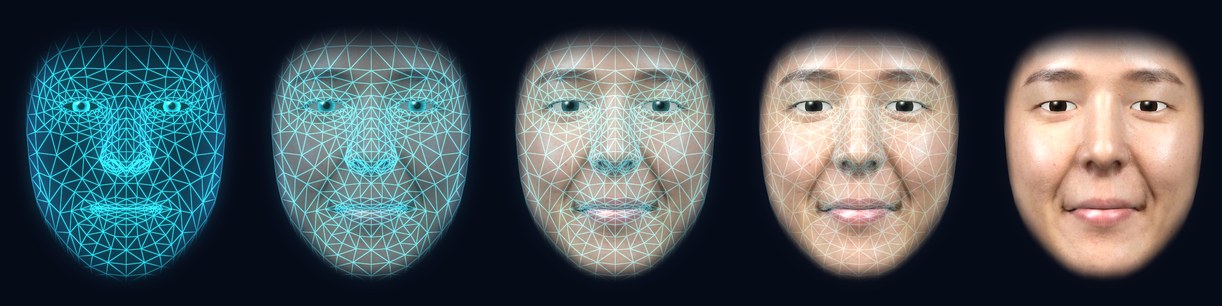
skin_amount at 0, 0.25, 0.5, 0.75 and 1.skin_amount (0 to 1, default 1) is a cross-fade from the glowing wireframe to the skin, over the whole
face. 0 is the bare wireframe and 1 the whole skin. In between, the skin fades in (a little ahead) as the wireframe's
lines, points, scanlines and rim fade out, and the eyes and the inside of the mouth blend from the hologram's to the
skin's. Only the wireframe glows: its share keeps its glow (glow and the other hologram settings apply
to it), and the skin never does. It's a setting like any other, so it applies to whichever skin is on, your own
included, and it can go in a config file. It's what the Wireframe ↔ Skin slider sets in the demo, on
Try it and in Wireface Desktop.
// a slider: <input type="range" id="amount" min="0" max="1" step="0.01" value="1">
amount.oninput = () => face.set({ skin_amount: +amount.value });
A new value glides in over a second or so, so a slider can set it directly. With no skin on,
style: 'sculpt' fades in over the wireframe the same way.
set takes any part of the config, checks it, applies it and returns the whole config. For anything
unknown or out of range it throws a ConfigError and changes nothing (colors.primary: expected
#rrggbb, glow: 3 is outside 0..2). RANGES holds the limits of every number setting,
which is handy for building sliders. Every setting is in the configuration
reference.
The style setting (hologram, sculpt, photo) still works, for
compatibility: face.set({ style: 'sculpt' }) gives a shaded head when no skin is on. Skins and
skin_amount are the way to choose a look now.
Skins
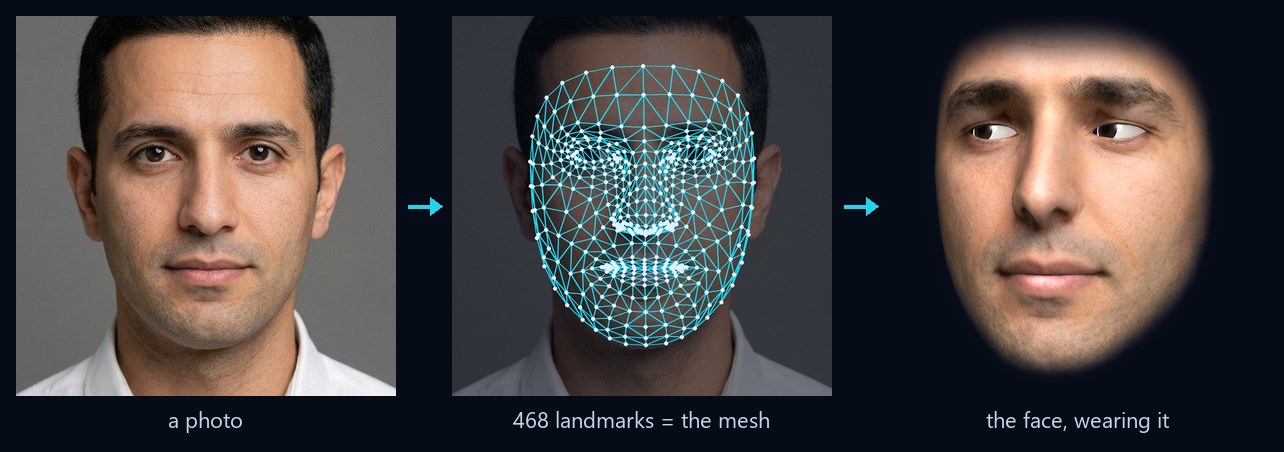
A skin is a picture of a face plus where the face's landmarks are in it. The mesh is MediaPipe's canonical face model, whose 468 vertices are the 468 landmarks MediaPipe finds in a photo, so each landmark becomes its vertex's texture coordinate and the picture becomes a 3D face. The eyes, teeth and inside of the mouth are drawn by the engine.
Wearing one
await face.useSkin('mei');                       // from the catalogue (assets/skins/skins.json)
await face.useSkin('dracula', { sweep: 1.6 });   // scan down onto the face over 1.6 s (the old skin comes off first)
await face.useSkin('robot', { teeth: 'sharp' }); // with other teeth than the skin's own
await face.useSkin(null);                        // back to the bare wireframe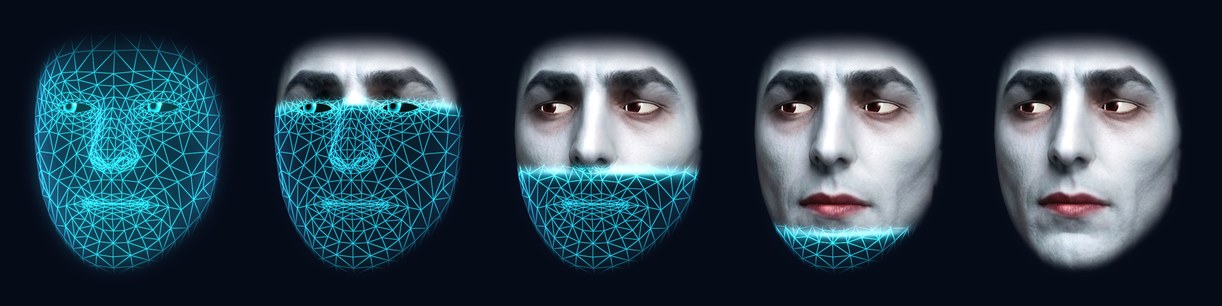
useSkin('dracula', { sweep: 1.6 }) sweeping on.useSkin resolves once the skin is showing; until its picture has loaded, the wireframe stays up. It
records the skin in the config (face.config.skin), with the teeth that go with it. Setting
skin with set() puts it on too, but returns before the picture has loaded.
A sweep scans the new skin down the face, with a bright band at its leading edge, after scanning the old one back
off. It shows as much of the skin as skin_amount says; at 0 there's nothing to see, so the skin changes
at once. The sweep is only how a skin goes on and comes off: skin_amount always blends the whole
face.
The included skins are mei, marcus, amara, walter,
lucia, arjun, omar, ruth, robot,
monster and dracula. To list them:
import { catalogue, ASSETS } from '@wireface/core';
const skins = await catalogue(ASSETS);   // [{ id, name, kind, teeth, image, thumb, landmarks }], with file URLs
From a photo, in the browser
import { skinFromPhoto } from '@wireface/core';

const skin = await skinFromPhoto(file);          // a File, Blob or URL
// -> { image: Blob (JPEG, at most 1024 px), landmarks: [[x, y] x 468], width, height }
await face.useSkin(skin, { sweep: 1.4 });
This loads MediaPipe's face landmarker from a CDN the first time it's used (a few megabytes of WebAssembly and
model). The photo never leaves the browser. It throws "couldn't find a face in that picture" when there isn't one. To
host MediaPipe yourself, pass your own paths; MEDIAPIPE holds the defaults:
await skinFromPhoto(file, { bundle: '/mp/vision_bundle.mjs', wasm: '/mp/wasm', model: '/mp/face_landmarker.task' });Good photos are taken straight on, with the mouth closed, even light, and the face filling a good part of the frame. Painted, rendered and AI-made faces work too, robots and monsters included, as long as they're face-shaped.
Your own skin files
A skin is two files: a picture, and a JSON array of 468 [x, y] pairs from 0 to 1, with the origin at the
top left of the picture. examples/photo.html makes them from a photo and saves them. Wear them
directly:
await face.useSkin({ image: '/faces/ada.jpg', landmarks: '/faces/ada.json', teeth: 'normal' });
// image: a URL or Blob; landmarks: a URL or the array itself
Or make a catalogue of your own: a folder with skins/skins.json, plus ID.jpg,
ID-thumb.jpg and ID.json for each skin.
[
  { "id": "ada", "name": "Ada", "kind": "human", "teeth": "normal" }
]
const face = createFace(canvas, { assets: '/my-faces/' });
await face.useSkin('ada');An id is lowercase letters, digits, - and _, up to 40 characters. kind is free
text (the included ones use human, robot and creature). The thumbnail is only
for pickers.
Teeth
Skins show photographic teeth when the mouth opens: normal, braces, vampire,
goofy, sharp and turkey. A catalogue skin brings its own ("teeth"
in skins.json), which useSkin(id, { teeth }) overrides.
face.set({ teeth_style: 'vampire', teeth_width: 1.1, teeth_size: 0.9 }); // width and size: 0.5 to 1.5Expressions, moods and states
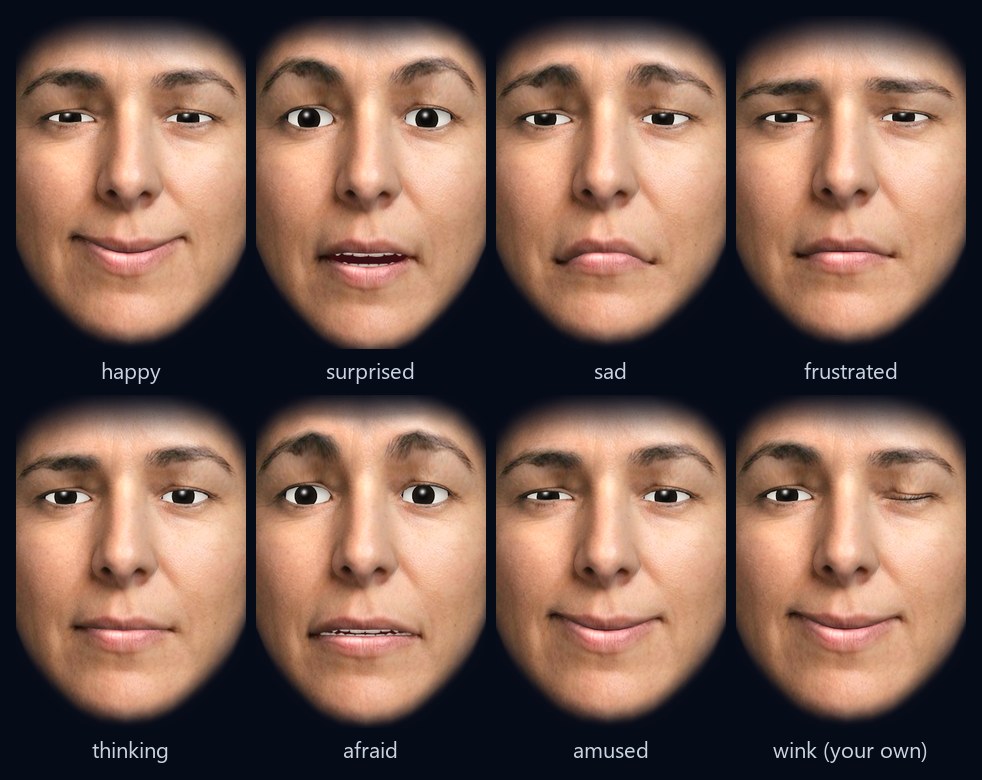
Expressions
face.express('surprised');        // eases in, holds for 4 s, eases back
face.express('happy', 10);        // for 10 s
face.express('angry');            // aliases work: this is 'frustrated'
The built-in expressions (MOODS) are neutral, happy, excited,
amused, surprised, curious, thinking, concerned,
sad, afraid, frustrated, calm, content,
bored and glum. ALIASES maps everyday words to them: smile, joy and glad mean
happy; angry and annoyed mean frustrated; confused and pondering mean thinking; scared and fear mean afraid; worried
means concerned; and so on. An unknown name throws. The expressiveness setting (0 to 2, default 1)
scales how strongly every expression and gesture shows.
Your own
An expression is a set of weights from 0 to 1 over the rig's channels:
import { defineExpression, CHANNELS } from '@wireface/core';

defineExpression('wink', { blinkL: 1, smileL: 0.45, smileR: 0.7, browUpR: 0.3, squintL: 0.3 });
defineExpression('smug', { smileL: 0.6, smileR: 0.1, browUpL: 0.4, squintR: 0.3 });
face.express('wink');
Channels (CHANNELS) | Move |
|---|---|
jaw | opens the mouth |
close, wide, round, upperUp, lowerDown, bite, pout | the lips |
smileL, smileR, frown, sneer, cheekPuff | the mouth corners and cheeks |
blinkL, blinkR, squintL, squintR, eyeWideL, eyeWideR | the lids |
browUpL, browUpR, browDown, browInner | the brows |
L and R are the face's own left and right, so blinkL closes the eye on your
right as you look at it. Expressions are shared by every face on the page, and defining one with an existing name
replaces it. A name is letters, digits, - and _, up to 40 characters.
Moods
A mood is worn whenever nothing else is showing: a resting face.
face.mood('content', 0.6);    // intensity 0..1 (default 0.5)
face.mood(null);              // none
States
States show what the face, or the agent behind it, is doing. They change the eyes, posture and pace, not just the mouth.
face.state('thinking');   // eyes up and aside, while you wait for an answer
face.state('busy');       // working
face.state('error');
face.state('muted');
face.state('asleep');     // eyes close; 'idle' wakes it
face.state('idle');
Talking
There are three ways to drive the mouth:
| Clips | Live | Streamed | |
|---|---|---|---|
| For | Speech you have in advance: recorded lines, TTS you generate first | Speech as it happens: a microphone, a call, an <audio> element | A voice that arrives as raw PCM while it's spoken: Gemini Live, streaming TTS |
| How | A mouth track made from the audio and its words | Loudness and spectrum, frame by frame | Mouth shapes worked out from each piece of audio before it's heard |
| Quality | Best: lips close on m, b and p, round on "oo", in time | Good, approximate | Close to a clip: lips close on m, b and p, with no lag |
| API | face.say(clip) | face.listenTo(audioContext, source) | new StreamVoice(face, audioContext) |
Sound and autoplay
Browsers only allow sound after the user has interacted with the page. Create your AudioContext in a
click handler, or resume it there. Without an audioContext, say still moves the mouth: the
face mimes.
let audioContext = null;
soundButton.onclick = () => { audioContext ??= new AudioContext(); audioContext.resume(); };
Clips
const clip = await face.clip('dracula');                // assets/voices/dracula.json, and its audio
await face.say(clip, {
  audioContext,                                         // optional: heard as well as seen
  onCaption: text => (caption.textContent = text),      // the words so far, as they're spoken
});
face.clip(id, folder) loads folder/ID.json and the audio it names (ID.m4a if
it names none). Folders may be relative to the page ('/voices/'). The eight included voices are
mei, marcus, amara, walter, lucia,
robot, monster and dracula (voices/cast.json lists them, with
expression cues).
say resolves when the clip ends, with the AudioBufferSourceNode playing it (or
null when miming). It plays one clip at a time: starting another stops the one before, and
face.hush() stops it outright, sound and mouth.
A clip file looks like this. Each frame is a row of the ch values, one every hop samples
(10 ms at 24 kHz), from sample s0. You can pass a clip object you made yourself, with
audio as a URL or a decoded AudioBuffer.
{
  "audio": "hello.m4a",
  "text": "Hello there.",
  "duration": 1.42,
  "mouth": [{
    "sr": 24000, "s0": 0, "hop": 240, "src": "aligned", "text": "Hello there.",
    "ch": ["jaw", "wide", "round", "close", "fric", "bite", "tongue", "energy"],
    "frames": [[0.12, 0.3, 0, 0, 0, 0, 0, 0.4], "..."]
  }]
}
Live lip sync
// a microphone
const stop = face.listenTo(audioContext, await navigator.mediaDevices.getUserMedia({ audio: true }));

// an <audio> or <video> element (streaming TTS, a podcast...); it stays audible
const stop = face.listenTo(audioContext, document.querySelector('audio'), { gain: 1.3 });

// a WebRTC call: the remote stream
peerConnection.ontrack = e => face.listenTo(audioContext, e.streams[0]);

// any AudioNode you're already playing through
const stop = face.listenTo(audioContext, myGainNode);

stop();     // back to the clip timeline
gain (default 1) opens the mouth more or less. The level adapts, so quiet and loud voices both work.
Three catches:
- Each media element can be connected only once (the Web Audio API's rule), so keep one
listenToper element. - Cross-origin audio needs CORS (
crossorigin="anonymous"and the server's header). Otherwise the browser hands the analyser silence and the mouth stays shut. - Chrome only passes a remote WebRTC stream's audio to Web Audio while the stream is also attached to a media
element, so keep it playing in an
<audio>as well.
Streamed speech
For a voice that arrives as raw PCM while it's being spoken, such as Gemini Live's 24 kHz 16-bit audio or a
streaming TTS, StreamVoice plays the pieces without gaps and works out the mouth from each one before
it's heard. It's much closer to a clip than listenTo: the lips close on m, b and p, and nothing lags
behind the sound, for a quarter of a second of buffering before the voice starts. The face on
Try it talks to Gemini Live this way.
import { StreamVoice } from '@wireface/core';

const voice = new StreamVoice(face, audioContext);    // { sampleRate: 24000, buffer: 0.25 }
voice.onEnd = () => {};                               // the reply has finished playing
voice.push(int16Chunk);                               // each piece as it arrives
voice.end();                                          // the reply is all in
voice.stop();                                         // the user spoke over it: silent at once
voice.position;                                       // samples heard so far, to keep captions in step
Each piece is mono, at sampleRate: an Int16Array of 16-bit PCM, or a
Float32Array from -1 to 1. face.hush() stops it too.
MouthTracker is the part that turns audio into mouth frames, for when you play the sound yourself:
feed(samples, index) takes samples (a Float32Array) and the player's sample count at the
first of them, and returns timeline packets for face.view.timeline.add(). flush() finishes
an utterance, and cancel() drops what hasn't been sent when speech is cut off.
MOUTH_CHANNELS names the channels in each frame.
import { MouthTracker } from '@wireface/core';

const tracker = new MouthTracker(24000);
for (const packet of tracker.feed(samples, index)) face.view.timeline.add(packet);
// ...and when the utterance ends
for (const packet of tracker.flush()) face.view.timeline.add(packet);
Fine tuning
mouth_gain(0.3 to 2) scales the lip-sync movement, for clips and live.sync_offset_ms(-200 to 200): positive values make the mouth move later. Use it if your audio path adds latency. For clips, the face already allows for theAudioContext's own output latency.
Making clips
The tools need Python 3.10 or newer with numpy (pip install -r tools/requirements.txt). ffmpeg is needed
for audio that isn't WAV, and to write .m4a.
From text
Gemini text-to-speech, then the mouth track. It needs GEMINI_API_KEY (or
GOOGLE_API_KEY).
python -m tools.voice "Good evening." --voice Charon --style "Say slowly, like Count Dracula" -o my-voices/draculaThis writes dracula.m4a (or .wav without ffmpeg) and dracula.json.
--voice defaults to Kore. --style says how to say it and isn't spoken. Some voices:
Kore, Leda, Aoede, Sulafat (female); Charon, Puck, Achird, Iapetus (male).
From any audio
Your own recordings, or any TTS (ElevenLabs, OpenAI, Azure, anything):
python -m tools.lipsync line.wav --text "Hello there." -o my-voices/line.json
python -m tools.lipsync --get-lexicon          # once: a pronunciation lexicon, for better alignment
With --text, the words are aligned to the sound phoneme by phoneme, so the lips meet on every m, b and p.
Without it, or when alignment fails, the shapes come from the sound alone. Without -o, the clip is written
next to the audio. The clip records where the audio is relative to itself, so
face.clip('line', '/my-voices/') finds it.
Config files
Every setting can live in a JSON file, checked when you load it and described by a JSON Schema so editors autocomplete it. See Config files for wireface-core, and every setting in the configuration reference.
const face = createFace(canvas, { config: await (await fetch('face.json')).json() });Events
const off = face.on(ev => {
  if (ev.type === 'speaking') console.log(ev.text != null ? `speaking: ${ev.text}` : 'stopped speaking');
  if (ev.type === 'caption') console.log('caption', ev.text);
});
off();    // unsubscribe
speaking comes when the face starts talking (with the clip's text, or an empty string for live lip
sync) and when it stops (text: null). caption carries the sentence now reaching the
speaker.
API reference
createFace(canvas, options)
Returns a Wireface (also exported, as a class: new Wireface(canvas, options)).
| Option | Default | What it does |
|---|---|---|
config | {} | Any settings, checked (a ConfigError names a bad one). A skin in it is put on. |
assets | the package's own | The base URL of the skins/ and voices/ folders |
fit | 0.9 | How much of the canvas the face fills, 0.5 to 1.2. The zoom setting multiplies it. |
follow | true | The eyes and head follow the pointer anywhere in the window |
Wireface
| Method or property | What it does |
|---|---|
set(patch) | Change settings: a partial config, which may name a preset. Checked; throws ConfigError and changes nothing if a setting is bad. Returns the whole config. |
config | The current settings |
useSkin(skin, { sweep, teeth }) | Wear a skin: a catalogue id, { image, landmarks, teeth? }, or null for the wireframe. sweep: seconds to scan it on from the top, as much of it as skin_amount shows (0, at once, by default). teeth: other teeth. Resolves once it's showing. |
express(name, seconds = 4) | Show an expression for a while. Returns the expression's real name (aliases resolved); throws for an unknown one. |
mood(name, intensity = 0.5) | A standing mood, worn when nothing else is showing; null for none |
state(name) | idle, thinking, busy, error, muted or asleep; throws for anything else |
clip(id, folder?) | Load a clip: folder/ID.json and its audio. The folder defaults to the assets' voices/. |
say(clip, { audioContext, onCaption }) | Play a clip with its lip sync. Resolves when it's done or stopped, with the source node (or null when miming). |
hush() | Stop the clip it's saying, sound and mouth |
listenTo(audioContext, source, { gain }) | Live lip sync from a MediaStream, an <audio> or <video>, or an AudioNode. Returns stop(). |
disappear(), appear() | Glitch and burn away from the chin up, or materialise from the top down. Each resolves when it's done. |
on(fn) | Events: { type: 'speaking', text } and { type: 'caption', text }. Returns an unsubscribe function. |
view | The engine's FaceView, for anything else |
destroy() | Stop and free the GPU |
Other exports
| Export | What it is |
|---|---|
validateConfig(patch, base?) | base (default: DEFAULTS) with patch applied and checked; throws ConfigError |
ConfigError | The error set and validateConfig throw |
DEFAULTS (also DEFAULT_CONFIG) | Every setting's default |
RANGES | Every number setting's [min, max] |
PRESETS | The colour presets: { primary, secondary, background } each |
STYLES, TEETH_STYLES | The choices for style and teeth_style |
CHANNELS | The channels an expression can move |
EXPRESSIONS | Every expression's weights, including the face's own states |
MOODS | The expressions meant for you to set |
ALIASES | Everyday words for them |
defineExpression(name, weights) | Add or replace an expression, for every face on the page |
resolveExpression(name) | The expression a name (or alias) means; throws for an unknown one |
catalogue(assets) | The skins in a folder's skins/skins.json, with their files' URLs |
skinFromPhoto(photo, paths?) | A skin from a File, Blob or URL, made in the browser |
MEDIAPIPE | Where skinFromPhoto loads MediaPipe from by default |
loadClip(folder, id) | A clip from a folder (what face.clip uses) |
playClip(face, clip, options) | What face.say uses |
LiveLipSync | What face.listenTo uses: new LiveLipSync(audioContext, source, { gain }), then attach(face) and detach() |
StreamVoice | A voice streamed in as raw PCM, played with its lip sync: new StreamVoice(face, audioContext, { sampleRate, buffer }), then push, end and stop (Streamed speech) |
MouthTracker | Turns streamed audio into timeline packets: new MouthTracker(sampleRate), then feed, flush and cancel |
MOUTH_CHANNELS | The mouth channels in each frame of a clip's mouth track or a timeline packet: jaw, wide, round, close, fric, bite, tongue, energy |
FaceView | The engine's face |
ASSETS | The URL of the package's own assets |
Recipes
A face for an AI agent
async function ask(question) {
  face.state('thinking');
  const reply = await callYourAgent(question);           // your LLM or agent
  face.state('idle');
  face.express(reply.mood ?? 'happy', 5);                // let the model choose: give it MOODS as options
  const audio = new Audio(await textToSpeechUrl(reply.text));
  audio.crossOrigin = 'anonymous';
  const stop = face.listenTo(audioContext, audio);
  audio.onended = stop;
  await audio.play();
}
For the best lip sync, run your TTS output through tools/lipsync on the server, send the clip JSON with
the audio, and face.say() it instead.
React
import { useEffect, useRef } from 'react';
import { createFace } from '@wireface/core';

export function Face({ skin, mood }) {
  const canvas = useRef(null);
  const face = useRef(null);
  useEffect(() => {
    face.current = createFace(canvas.current, { assets: '/wireface/' });
    return () => face.current.destroy();
  }, []);
  useEffect(() => { face.current.useSkin(skin ?? null, { sweep: 1.2 }); }, [skin]);
  useEffect(() => { face.current.mood(mood ?? null, 0.6); }, [mood]);
  return <canvas ref={canvas} style={{ width: 360, height: 400 }} />;
}
The same pattern works in Vue (onMounted and onUnmounted), Svelte (onMount
returning destroy) and elsewhere: create once, destroy on the way out.
Several faces
Each createFace is independent, with its own canvas, config and skin. Each uses a WebGL context, and
browsers cap how many a page may have (16 in Chrome), so for a crowd, use fewer, larger canvases. Expressions made
with defineExpression are shared by all of them.
Over a video or a page
The canvas is transparent. Position it over anything, and set pointer-events: none on it if clicks
should go through.
Coming and going
await face.disappear();    // glitches, then burns away from the chin up
await face.appear();       // materialises from the top down
Under the hood
The API in src/index.js sits on the engine in src/engine/, the same code that runs in
Wireface Desktop.
| File | What's in it |
|---|---|
face.js | FaceView: the render loop, config, skins, sweeps, vanishing, pointer, events |
render.js | The WebGL2 renderer: wireframe, sculpt and photo shaders, eyes, teeth, mouth, bloom |
rig.js | The blendshape rig: the channels, how each moves the 468 vertices, the jaw |
animator.js | Layers of animation: expressions and moods, blinks, saccades, gestures, head motion, lip sync |
timeline.js | MouthTimeline: buffers mouth packets and plays them against an audio clock |
teeth.js, teeth/ | The teeth |
mesh-data.js | MediaPipe's canonical face mesh: positions, UVs, triangles |
face.view is the FaceView, if you need more than the API gives you: for example
view.sweep(to, seconds) (the scan that puts a skin on, cross-faded as skin_amount says),
view.setPointer(x, y), or view.timeline to feed mouth
packets from a stream. LiveLipSync shows how to stand in for the timeline: it implements
sample() and returns the mouth channels for this moment.
Examples and the demo
Run npm start and open http://127.0.0.1:5173/:
/demo/, the playground: skins (including your own photo), the Wireframe ↔ Skin slider, colours, teeth, motion, expressions, clips and microphone lip sync, with the face's config as a file you can copy or download./examples/, one short page per feature:hello,skins,expressions,talk,live,photoandconfig.
Problems? See wireface-core troubleshooting.
Working on core
npm start          # http://127.0.0.1:5173/ (PORT=8080 npm start for another port)
npm test # node --test: config, schema, assets, loading- The examples are the quickest way to try a change.
- The demo builds its controls from
RANGES,PRESETS,TEETH_STYLESand the catalogue, so new settings show up there. - New settings go in
src/config.js(default, range, check) andconfig/face.schema.json. A test keeps the two in step. - The engine is shared with Wireface Desktop. Change it in core first, then copy it across.
Browsers and licence
It runs in any browser with WebGL2 and ES modules: Chrome, Edge, Firefox, and Safari 15 and later. Each face uses one WebGL context.
The face mesh is MediaPipe's canonical face model (Apache-2.0). The portraits and characters were made with AI image generation, and the voices with Gemini text-to-speech; the NOTICE file lists the third-party parts. wireface-core is free for personal and non-commercial use under the PolyForm Noncommercial License 1.0.0. Using it at work, for clients, or in a product or service you sell needs a commercial licence.