Wireface Desktop
Using Wireface Desktop
The face, its menus, and the panel, tab by tab. Settings change live and are saved as you go, for each face separately.
On this page
The face
The face floats over your other windows. Everything you can do with it directly:
| Do this | And it |
|---|---|
| Right-click | opens the menu |
| Double-click | switches between the floating face and the floating panel |
| Drag | moves it |
| Scroll over it | resizes it. In the floating panel, scrolling zooms the face and Ctrl + scroll resizes the panel |
| Ctrl + =, Ctrl + - | zooms in and out |
| Esc | stops it talking and working (it closes an open menu or message box first) |
| Drop a photo on it | asks whether to Use photo as its face, or Send it to me instead (to the agent) |
| Drop text or a file on it | sends it to the agent. A file is sent as its path |
The right-click menu
Quick actions only; everything else is in the panel.
- Stop: stops it talking and the agent working (while there's something to stop).
- Type a message...: a box to type to the agent.
- Show activity: opens the panel on Activity.
- Show full transcript (Claude Code only): opens Activity on its Raw view, Claude Code's own transcript of the session.
- Tools, then MCP servers... or Skills...: opens the panel's Tools tab on that list.
- New conversation: starts the agent's conversation afresh.
- Compact conversation: replaces the earlier part of the conversation with a summary, so it can go on.
- Listening: turns the microphone on or off.
- Voice replies: turns spoken replies on or off.
- Stop skipping permissions: shown only while permissions are skipped.
- Hide face, Settings... and Quit.
The tray icon
The wireframe head in the notification area is the tray icon. Windows may tuck it under the ^ arrow: drag it out to keep it in view. Click it to hide or show the face. Right-click it for Show face or Hide face, Show activity, Settings... and Quit.
Go away and come back
Say "go away" (or "hide", "disappear", "get out of the way", with or without its name) and the face glitches, then burns away from the chin up in a shower of sparks, and its window goes. Say "come back" (or "show your face", "where are you?") and it materialises again from the top down. While it's away, anything short along those lines counts, even if speech recognition garbles it.
You can also ask the agent in your own words: Claude Code does the same with its face tool
(mcp__face__show_face). The agent keeps working and talking while the face is away, and the microphone
keeps listening. Hide face in the menu and a click on the tray icon work too.
Listening and talking
Listening is off until you turn it on, from the menu, the panel's toolbar or the Voice tab. There's no wake word: while it's on, everything said nearby goes to the agent. The microphone rests while the face speaks, so it never hears itself, except for its name: say "Claude" (or whatever the face is called) and it stops within about half a second and listens to what you say next.
You can always type instead, or drop text on the face. All about the microphone and the voice: Voice and hearing.
When it sleeps
When the agent is offline or stopped, or the face loses its connection to Wireface, it falls asleep: eyes closed, head drooped, slow breathing. It wakes when the agent is back. With Start with the face off (Agent tab), the agent only starts with your first message, so the face sleeps until then.
The floating panel
Double-click the face (or set View to Floating panel on the Face tab) to put it in a small window of its own, with captions under it and a toolbar: Listening, Voice replies, Stop and Type a message. Its header has New conversation, Settings, Face only (floating) and Quit. Drag the corner to resize it. Double-click again for just the face.
The panel
Right-click the face and choose Show activity, an item under Tools, or Settings... to open the panel: a resizable window that stays on top. Its header shows the face's name and what the agent is doing, plus badges for background tasks, the room it's in, and a red Permissions skipped while that's on.
The buttons in its title bar:
- Dock to a screen edge: Dock right, Dock left or Float. Docked, the panel is a drawer the full height of the screen, as wide as you drag it. It stays docked across restarts.
- Fold away (while docked): folds the drawer into a slim tab at the screen edge that pulses when there's new activity. Click the tab, or choose Show activity again, to slide it back out.
- Keep on top, Minimise, Maximise and Close.
Its tabs are Activity, Tools, Phone (only while the phone line is on), Face, Voice and Agent. When the agent asks permission, the question shows on every tab, with Allow, Always allow and Deny.
Activity
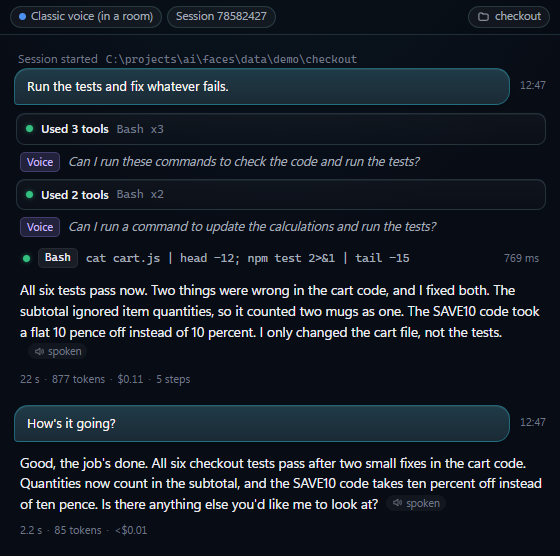
The agent's session as a timeline. Each request is a block with what the agent wrote and did:
- Tool calls are grouped ("Used 3 tools: Read x2, Edit"). Open a group to see each call's input and result.
- Each request shows its time, tokens and cost. The session's total is in the strip at the top.
- Subagents and background tasks are nested under the call that started them.
- A reply the realtime voice read out word for word is marked spoken. When what you heard was different (cut off, a path or link described, a long reply summed up), what it said is shown under the reply. The voice's own words ("on it", progress, questions) are Voice lines.
- Long inputs and results are cut short, with Show all. With Claude Code, a tool result that Activity cut short has Show full output, which fetches the whole of it from Claude Code's transcript of the session.
Filter by All, Conversation, Tools, Background or Errors, and search. Clear hides everything so far; it stays in the log files. Jump to latest appears when you've scrolled up.
Finished events are also written to logs\activity-YYYY-MM-DD.jsonl in the face's folder, and the
latest come back after a restart. They contain what the agent read and ran, so treat them as private.
Summary and Raw
With Claude Code, a Summary / Raw switch at the top left of the tab changes the view. Summary is
the timeline above. Raw is Claude Code's own full transcript of the session, live: every prompt, what Claude
wrote and thought, and every tool call with its complete output. Context also shows what Claude Code adds to
the conversation itself (environment, reminders). Raw follows Claude Code's session file
(~\.claude\projects\<working folder>\<session>.jsonl) as it grows, and a button copies its
path. It starts with the first message.
Show full transcript on the face's menu opens Activity on Raw, and Show activity on Summary. The panel remembers which view you used last. Raw is Claude Code's own file, so with OpenCode or Codex there's only the summary.
Tools
The agent's MCP servers and skills, read from its own configuration, on two sub-tabs: MCP servers and Skills. Each has a search (press /) and filters for what's installed, recommended, on, off or, for servers, having a problem. What's installed is grouped by where it comes from, each with a switch that changes the agent's configuration the way its own commands do; click one for its details, down to exactly what its switch writes. The tab shows each server's status, says when a change applies, and offers Restart now when the agent needs restarting to pick one up. It also recommends MCP servers and skills to install, including Wireface's own, made for a voice and a face, and checks what each needs on this PC. All of it, for Claude Code, Codex and OpenCode, is in MCP servers and skills.
Face
How the face looks and moves. Changes show on the face at once, and the Colours, Look and Motion groups each have a Reset to put them back to the defaults.
Skin: Wireframe ↔ Skin
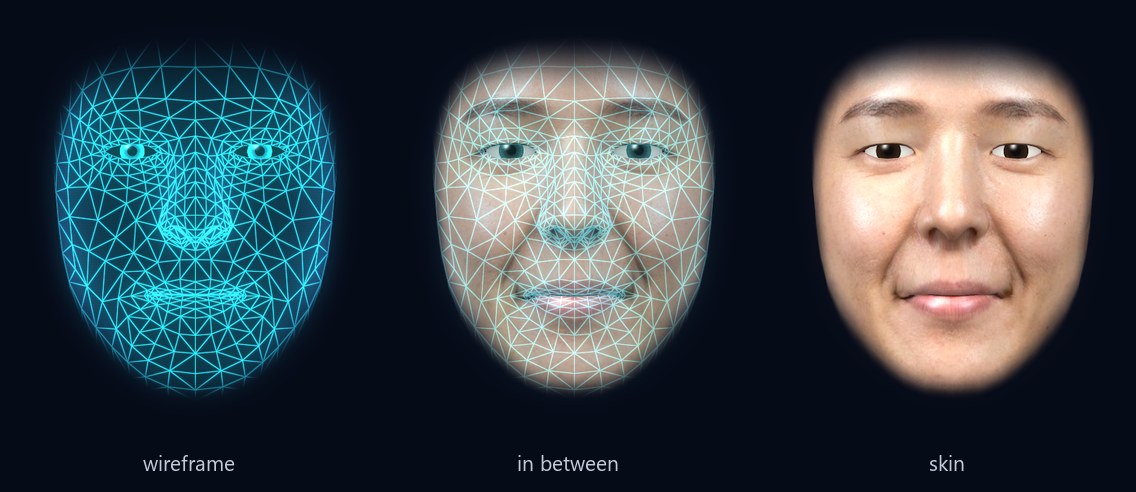
The face is a glowing wireframe with a picture, the skin, on it. The Wireframe ↔ Skin slider cross-fades
between the two: all wireframe at one end, all skin at the other (the default). In between, the whole face is a blend
of both, and the wireframe's lines, points and glow fade as the skin comes in; the skin itself barely glows. The face
glides to each new position rather than jumping. The Wireframe and Skin buttons at either end go
straight there. (The setting is skin_amount, from 0 to 1.)
A new face sweeps on from the top down, with a bright band at its leading edge, once the old one has swept back off. That sweep is only how a skin is put on or taken off: the slider always blends the whole face.
Photo face
The face the skin shows. A new face wears Mei. Pick another of the eight portraits (Mei, Marcus, Ruth, Arjun, Amara, Walter, Lucia and Omar), or Your own photo; you can also drop a photo straight onto the face. Any face-shaped picture works, a robot or a monster too. Your PC finds the face in your photo and maps it onto the mesh; the picture is kept in the face's own folder, never uploaded. Photos work best taken straight on, with the mouth closed and even light.
If the slider is right at the wireframe end when you pick a new face, it moves to full skin so you can see it. While the face is all wireframe, the group says so and offers Show to slide the skin back on.
Teeth, shown when the mouth opens: Normal, Braces, Vampire, Goofy, Sharp or Turkey.
Colours
The presets are Claude (the default), Cyan, Green, Amber, Violet, Rose and Ice, and there are colour wells for the Glow (the wireframe), the Rim light, the Mouth (inside it) and the Background. The glow and the background also colour the panel and the face's own window.
Look
Glow is the light around the wireframe. Mesh lines, Surface, Scanlines and Points shape the wireframe, and fade with it as the slider moves towards Skin. Soft edge fades the face out towards its edges, and Eyes chooses eyeballs with irises or hollow eyes. Panel background is what's behind the face in its floating panel: None, Solid, Gradient, Grid or Stars.
Motion
Eyes follow the mouse: the eyes and head turn towards the pointer. Under Advanced:
- Idle motion: how much the head moves on its own.
- Expressiveness: how strongly it shows expressions and gestures.
- Lip-sync strength: how wide the mouth opens as it talks.
- Lip-sync timing: if the mouth runs ahead of the voice, move it later (+); if it trails, earlier.
Expressions
Try each one on the face for a few seconds: neutral, happy, excited, amused, surprised, curious, thinking, concerned, sad, afraid, frustrated and calm. The agent changes its expression with its face tool too.
Window
- View: Floating face (just the face, on the desktop; scroll over it to resize it) or Floating panel (the face in a small window with captions and buttons).
- Captions: subtitles under the face in its panel.
- Always on top: keeps the face above other windows.
Every face setting, with its range and default, is in the configuration reference.
Voice
- Talking: Spoken replies (off: replies show as captions) and Listening.
- Realtime voice: the service, its API key, model and voice, how often it gives updates, whether it speaks as the agent, the fallback, and interrupting by talking.
- Classic voice, while the face uses it: the voice engine (this PC or ElevenLabs) and its voice.
- Hearing: Say its name to interrupt, Reduce background noise, Ignore distant voices, and the Speech models (installed, or a button to install them).
Each setting is explained in Voice and hearing.
Agent
- Agent: which agent, its Model, the Working folder, and Start with the face.
- Using this PC (Claude Code): Computer, Browser and Your Chrome.
- Permissions: When to ask, and Skip all permissions.
- Room: the room this face joins, other names it answers to, and who leads.
- Phone: the phone line.
- This face: its Name (shown on screen, and what you say to interrupt it), its Profile name, and the path of its Config file, with a copy button.
See Agents and permissions, Rooms and Phone line.
Phone
While the phone line is on, this tab shows the day's calls and texts, each conversation's transcript (live during a call), what the line agent did, messages for you, and the bookings coming up. See Phone line.
Where it keeps things
Each face keeps its settings, conversation, look, photo, logs and keys in a folder of its own: data\
for the original face, or data\faces\NAME\ for one started with --face NAME. When installed,
data\ is in %LOCALAPPDATA%\Programs\Wireface. The files are listed in the
configuration reference.