Get started
Features
What Wireface does, piece by piece, with links to the details. Everything here is in Wireface Desktop; the face itself is also in wireface-core and on this site.
On this page
The face
The face is MediaPipe's canonical face mesh, 468 points, drawn with WebGL. It blinks, breathes, glances about, follows your pointer, and moves its lips in time with what it says. It's the same engine in Wireface Desktop, wireface-core and the Try it page.
Skins
A skin is a picture of a face plus where the 468 points fall in it, so any face picture becomes a 3D face that blinks, looks around, smiles and talks. The eyes, teeth and inside of the mouth are drawn by the engine.
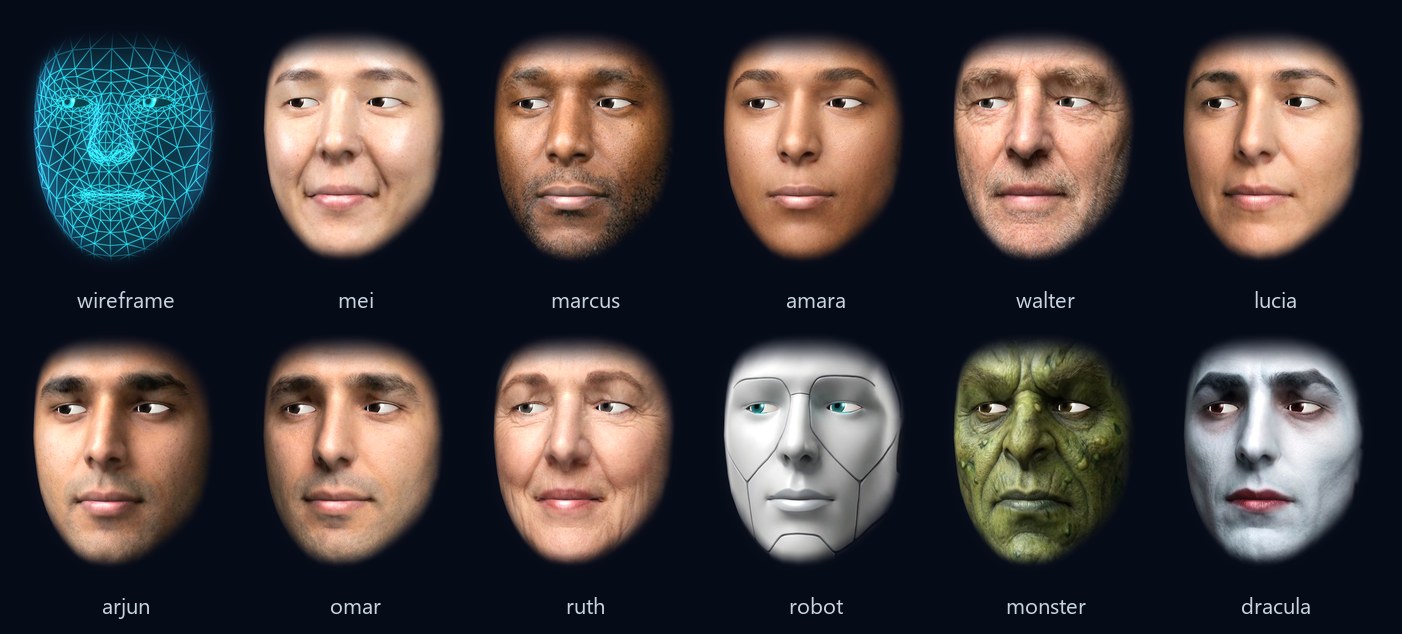
- Wireface Desktop comes with eight portraits: Mei, Marcus, Ruth, Arjun, Amara, Walter, Lucia and Omar. It starts wearing Mei.
- wireface-core and this site have eleven skins: the eight people plus a robot, a monster and Dracula.
- Your own photo: drop a picture of a face onto the face, or choose one in Settings. Your PC finds the face in it; the picture isn't uploaded anywhere. Painted, rendered and AI-made faces work too, robots and monsters included, as long as they're face-shaped.
Wireframe to skin
Under every skin is the glowing wireframe. The Wireframe ↔ Skin slider cross-fades from one to the
other: all wireframe at one end, all skin at the other. In between, the whole face is a blend of both: the
wireframe's lines, points and glow fade as the skin comes in, and the skin itself barely glows. The face glides to
each new position. It's the skin_amount setting, from 0 (wireframe) to 1 (skin), and 1 by default.
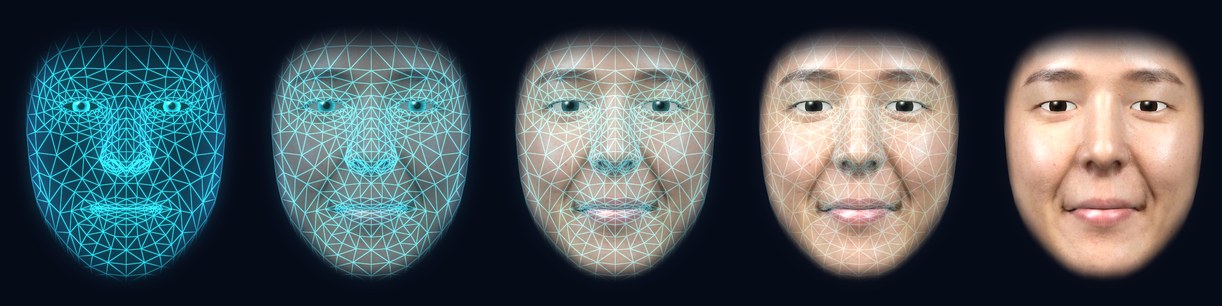
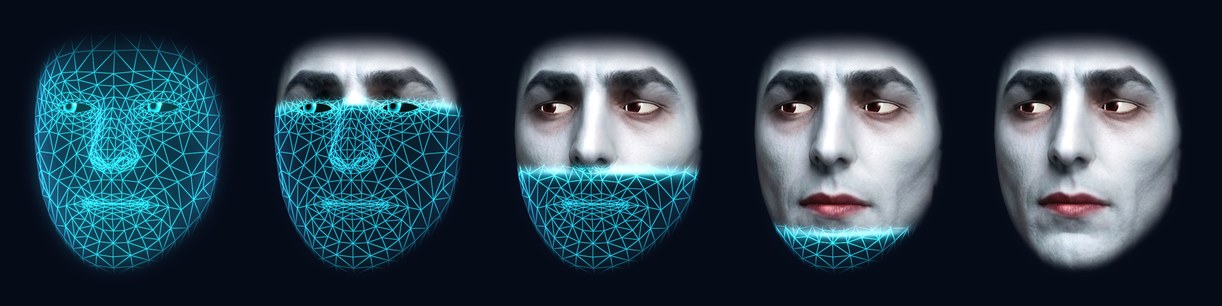
skin_amount at 0, 0.25, 0.5, 0.75 and 1.Putting a skin on sweeps it down the face from the top, with a bright band at its leading edge, and taking it off sweeps it back up. The sweep is only that animation: the slider always blends the whole face.
Colours, teeth and look
- Colours: presets, or any colour for the glow, the rim light and the background.
- Look: glow, mesh lines, surface, scanlines, points on the mesh corners, a soft edge, and eyeballs or hollow hologram eyes.
- Teeth: skins show teeth when the mouth opens, in six styles: normal, braces, vampire, goofy, sharp and turkey. Each skin brings its own (the robot has braces, the monster sharp teeth, Dracula fangs), and you can pick others.
- Motion: whether the eyes follow the mouse, how much the head moves on its own, how strongly it shows expressions, and the lip sync's strength and timing.
Every setting, with its range and default, is in the configuration reference.
Expressions and moods
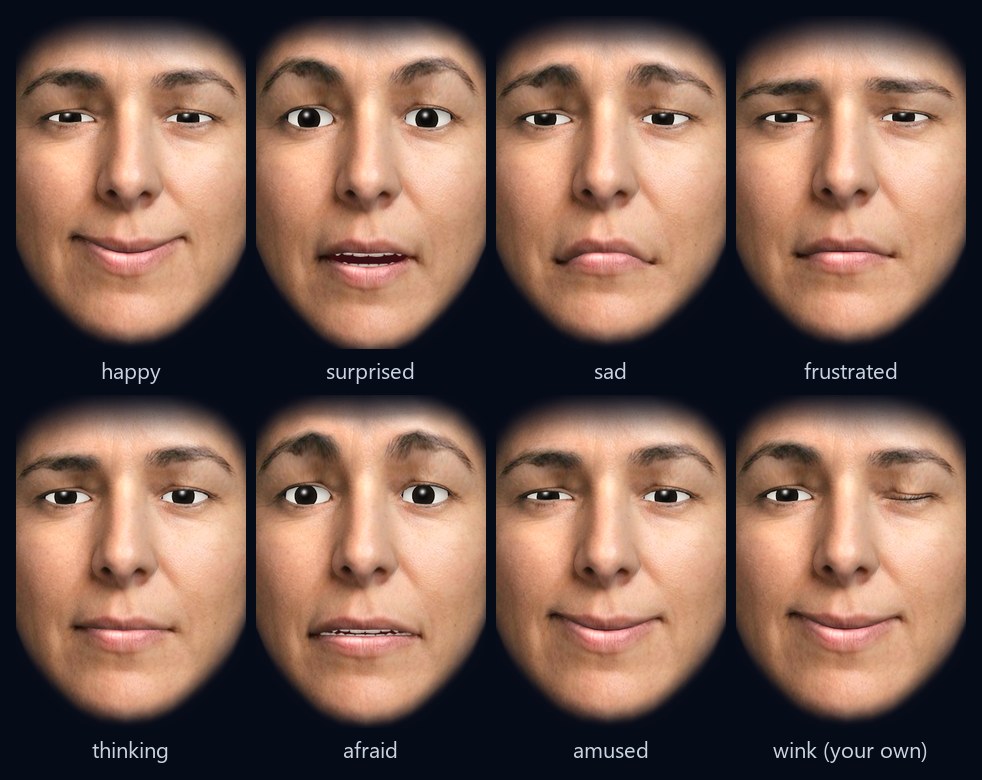
The face shows feelings: happy, excited, amused, surprised, curious, thinking, concerned, sad, afraid, frustrated
and calm. Claude Code has a tool for them (mcp__face__express) and uses it by itself, without asking:
"my cat died" gets a sad face, "I got the job" a happy one. The face also takes a light cue from what it's saying.
wireface-core adds content, bored and glum, moods, and expressions of your own.
Go away, come back
Say "go away" and the face glitches, then burns away from the chin up in a shower of sparks. Say "come back" and it materialises again from the top down. The agent keeps working and talking while the face is gone.
Asleep
When the agent is offline or stopped, or the face loses its connection, it falls asleep: eyes closed, head drooped, slow breathing. It wakes when the agent is back.
Talk with it on this site
The face on Try it talks with you. Press Start talking and ask it about Wireface: by voice, with the microphone button on, or by typing. It answers out loud, with its lips in time with its voice and subtitles of both sides, which you can turn off. It wears whichever face you've chosen, your own photo included. Each conversation lasts up to five minutes, and you can start another.
It runs on Google's Gemini Live, straight from your browser: what you type, and what you say while the microphone is on, goes to Google to be answered. See our privacy policy.
Talking with it
- A realtime voice: Gemini Live or OpenAI Realtime follows everything the agent does and tells you about it: its replies, its questions, problems and progress. Ask "how's it going?" mid-task and it answers at once. The voice never does the work and has no tools: every request is answered once, by the agent.
- Speech recognition on your PC: no audio leaves it. Your words go to the agent exactly as recognised.
- Say its name to cut in: say "Claude" (or whatever the face is called) while it talks, and it stops within about half a second and listens.
- Hears you, not the room: steady noise like fans, hum and typing is taken out, and voices much quieter than yours, like a TV, are ignored.
- The classic voice: without a realtime voice key, a voice that runs on your PC reads the agent's replies, or ElevenLabs if you have a key.
- Typing and dropping: type a message instead, or drop text or a file on the face to send it to the agent.
Details: Voice and hearing.
The agent behind it
Wireface isn't another agent. It drives the one you already use, exactly as you've set it up.
| Claude Code | OpenCode | Codex | |
|---|---|---|---|
| Connects through | Claude Agent SDK | Agent Client Protocol (opencode acp) | codex exec --json |
| Your setup it brings | Settings, MCP servers, skills, plugins, CLAUDE.md | Its config, MCP servers, AGENTS.md | config.toml, MCP servers, AGENTS.md |
| Asks before acting | Yes: Allow, Always, Deny | Yes: Allow, Always, Deny | No: its sandbox decides |
| Runs as | One long session | One long session | One run per message, resumed |
| Models | opus, sonnet, haiku or any id | Any provider/model | Any Codex model |
- Switch at any time, and each agent keeps its own conversation for each face.
- Pick a model from the models.dev catalogue, or type any name.
- Permissions stay yours: Claude Code and OpenCode ask before they run a command or change a file. The face asks out loud; answer "yes" or "no", or use Allow, Always and Deny. Skipping permissions is one switch away, and the face wears a red rim while it's on.
Details: Agents and permissions.
MCP servers and skills
- See what the agent has: the panel's Tools tab lists its MCP servers, with whether each is connected and any problems first, and its skills, read from the agent's own configuration. Search them, show just what's on, off or failing, and open any one for exactly what it runs and what its switch changes.
- Turn them on and off: each switch changes the agent's configuration the way its own
/mcp,/skillsor config file would, keeps a copy of the file as it was, and never shows a key or token. - Install recommended ones: well-known MCP servers such as Context7, Microsoft Learn and GitHub, and skills made for a voice and a face, such as taking dictated notes or walking you through a task one step at a time. Each says what it needs, checked on your PC, and what Install will do.
Details: MCP servers and skills.
Seeing the work
- The activity panel shows the session as a timeline: each request, the tools used and what came back, subagents and background tasks, and the time and cost of each request. It marks which replies the voice read out, and shows what it said instead when it summed one up.
- The Raw view, with Claude Code, follows Claude Code's own full transcript of the session, live, with every tool's complete output. A result the summary cut short has Show full output.
- Dock it as a drawer at the edge of the screen, and fold it into a slim tab that pulses when there's something new.
Details: Activity and Summary and Raw.
Using your PC
Claude Code behind the face can take screenshots and use the mouse and keyboard in desktop apps, drive a Chrome window of its own through Playwright, or work in your own Chrome with Claude in Chrome. Looking never asks; clicking and typing ask first, unless you skip permissions. Details: Using this PC.
Rooms
Several faces, each with a different agent, share one microphone and one conversation. One agent leads, the others add a sentence each, and the lead wraps up. Say a name to choose who answers. Details: Rooms.
A phone line
Give a face a Twilio number. A restricted receptionist answers calls and texts, takes messages and books appointments, and has no access to your agent, files or computer. Your own agent can text and call people for you, but asks you first every time. Details: Phone line.
Several faces
Run as many faces as you like, each with its own agent, folder, voice and look: --face work in one,
--face home in another. See Several faces.
Local where it counts
- Speech recognition runs on your PC: no audio leaves it.
- The realtime voice service gets the text of what you said, short notes about the agent's work, and its replies. ElevenLabs, when it's used, gets the text of replies.
- API keys stay in a local file (
secrets.json), never in the page or the logs. - The face's own web server listens only on 127.0.0.1, and makes a fresh access token every run.
The activity logs hold what the agent read and ran: treat them as private.
For developers
- wireface-core: the face for your own app or page. Skins (including one made from a photo in the browser), expressions, teeth, lip sync from recorded clips or live audio such as a microphone or a WebRTC call, and config files checked against a JSON Schema.
- Try it: play with the face in your browser, wear your own photo, and talk with it.
- Embedding: put the face on any page with one iframe.